
Bolo aur likho. Say what is on your mind, and you get it in writing. The words you are reading right now started as my voice — I dictate a lot of my work with the tool I am about to show you. It is called LikhiBoli: a free, private, Hinglish-native voice typing app for Windows that I built myself. Hold one hotkey anywhere in Windows, speak, let go — and clean, polished text appears right where your cursor is, in any app.
The short version: LikhiBoli lets you press and hold Ctrl + Win, speak, and release. Whatever you said gets typed for you at your cursor — in WhatsApp, Gmail, Notepad, a browser, a code editor, anywhere. It understands pure Hindi, pure English, and the natural mix of the two the way we actually talk. It is free forever, private by design, and needs no sign-up. Download it for Windows at likhiboli.com →
Why I built it
Every day I watched the people around me speak far faster than they type. And they were not speaking neat English — they were speaking the way all of us in India actually think and talk: “kal meeting hai at 4 pm, no actually 5.” Hindi and English mixed in one breath. No keyboard is built for that, and almost no voice tool is either.
Good dictation tools do exist. But they had three deal-breakers for me. They cost money every month. They sent your voice to someone else’s cloud by default. And they were built English-first, so they would either mangle Hinglish or force it into one script. I did not want to rent a product with those compromises. I wanted a tool I owned — local, private, free, and fluent in the mixed language I think in.
So I built one.
How it works: hold, speak, let go
There is no window to open and no button to hunt for. You put your cursor wherever you want to type, you hold Ctrl + Win, and a little pill appears at the bottom of your screen and starts listening — a live waveform moving with your voice.

When you let go, it shows Transcribing…, thinks for about a second, and types the clean text for you — punctuation, capitals and all.

It does more than just transcribe. It quietly removes the “umm”s and “you know”s, fixes your spoken corrections (say “5 baje, no, 6 baje” and you get “6 baje”), learns the names you use often so it spells them right, expands little snippets (say “my sign-off” and your whole signature appears), and takes voice commands — end with “send it” and it types your text and presses Enter for you.
The one decision that makes it feel Indian
The hardest question in the whole project was also the most important: which script? When someone speaks a mix of Hindi and English, do you write it in Devanagari or in Roman letters?
I landed on one simple, stubborn rule: if there is any English in the sentence, write the whole thing in Roman. Use Devanagari only when the speech is pure Hindi. When in doubt, Roman. That is exactly how we chat with each other every day. This one rule is the reason LikhiBoli feels native when other tools feel foreign — it respects how you actually code-switch instead of forcing you to pick a lane.
Two modes — your choice, every day
LikhiBoli lives quietly in your Windows system tray. One click and you can switch how it works, set a key, browse your history, or teach it a new name.
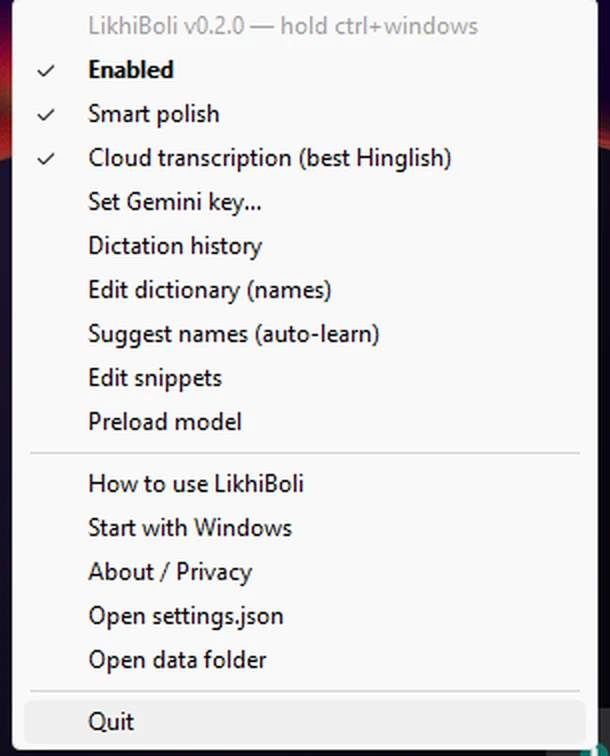
There are two ways it can run, and you decide which:
- Offline mode — everything happens on your own PC. Your audio never leaves the machine. It works without internet, and it is genuinely private. Great for English, good enough for Hindi.
- Online mode — for the best Hinglish, your audio goes to Google Gemini using your own free key (never stored anywhere), and comes back as clean, mixed-script text in about a second.
The privacy is not a footnote — it is the whole point. No accounts. No login. No telemetry. No LikhiBoli server of mine in the middle. Your dictation history is a file on your own device, searchable by you alone.
If you want the sharper online mode, getting a free Google key takes about two minutes, and LikhiBoli walks you through it:
Getting a free key (about two minutes)
The part I want to be honest about: building it
I built LikhiBoli solo, directing AI as my engineering partner — and it was not a straight line. Early on, clean English came out as complete Devanagari garbage because the speech engine kept mis-guessing the language. For a while, bigger, more accurate models were so slow on a normal computer that seven seconds of speech took twenty-plus seconds to type — “that is not a dictation tool, it is a coffee break.” That is what pushed me to the two-mode design: fast and private on-device, or Gemini for top-tier Hinglish, with the choice honestly in your hands.
The test I kept coming back to was simple: would I give this to my mother, and be proud of every promise it makes to her? That question is why the privacy is real, why the setup is friendly, and why the app teaches you how to use it with an illustrated guide built right in.
One honest heads-up: because I keep LikhiBoli free, the installer is not code-signed (those certificates cost a lot every year). So the first time you run it, Windows shows a blue “Windows protected your PC” box. The fix is two clicks — More info → Run anyway — and you only ever see it once. It installs to your own user folder and never asks for an admin password.
Try it — it is free
If you think in Hindi and type in English, or you simply talk faster than you type, this was built for you — by one of you.
Download LikhiBoli for Windows — free →
Frequently asked questions
What is LikhiBoli?
Is LikhiBoli really free?
Is my voice private?
Why does Windows show a blue warning when I install it?
Which apps does it work in?
Who made LikhiBoli?
LikhiBoli is one of the things I have built with AI. I also made mManager, a chat-first AI planner live on the Google Play Store, and this very website. If you want a website, an app, or a custom tool built for your own idea, here is how to reach me.